Get
app

Windows · Free · Lightweight

HiBit Uninstaller: remove programs without the usual trail of junk.

Independent guide—not the official HiBit Uninstaller website. What the tool does, how people use it on real PCs, what can go wrong, and how to verify downloads before you run anything.

Verify filename, version, and signature against a source you trust before running any executable.

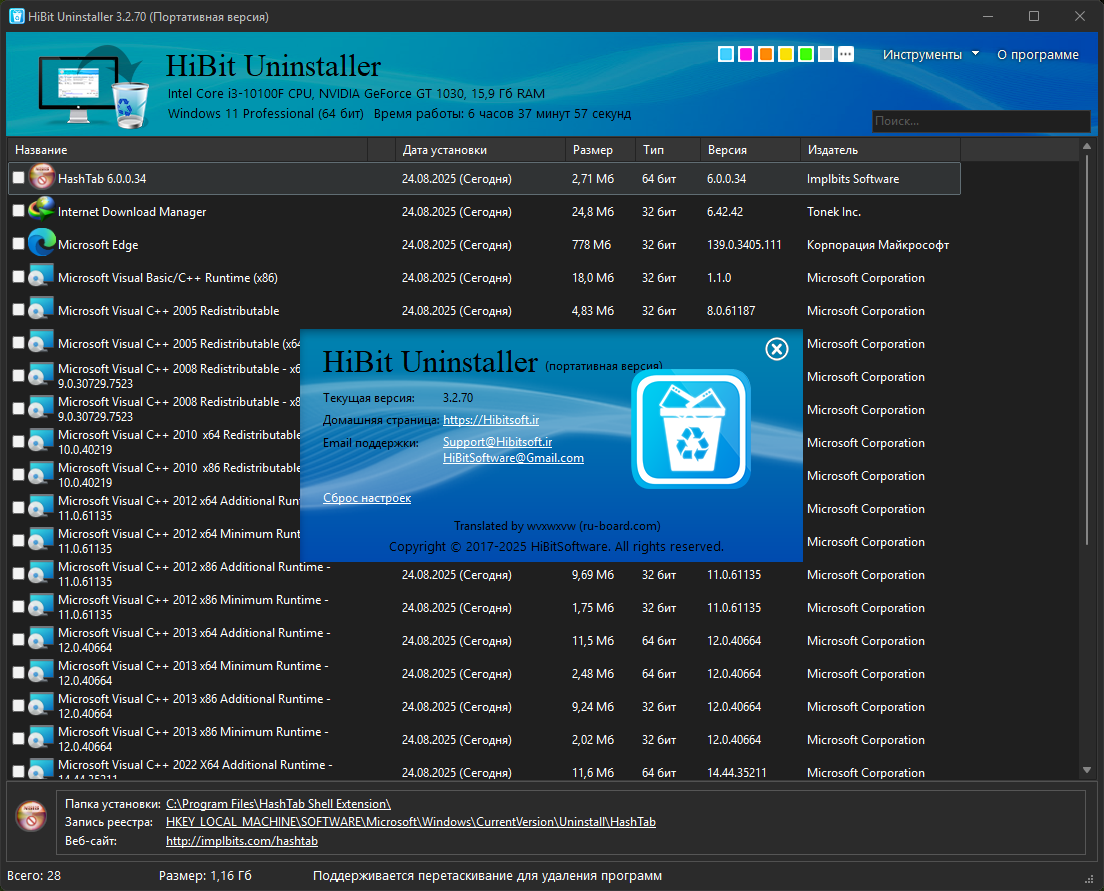
HiBit Uninstaller main window showing installed programs list and About dialog (interface language may vary by system locale)
HiBit Uninstaller, main window (screenshot)

Essentials

What is HiBit Uninstaller?

HiBit Uninstaller is a free utility for Windows that focuses on uninstalling desktop programs, Store-style apps, and browser extensions, then chasing down common leftover files, folders, and registry entries. It also bundles helpful maintenance modules (startup items, Windows services, restore points, empty folders, junk scans, and a file shredder) so you can address “mystery slowdowns” without installing five separate tools.

Typical install size is only a few megabytes, which matters on older laptops or small SSDs. It is commonly described as portable-friendly (a portable build is often published alongside the setup executable), which appeals to technicians who keep a USB toolkit.

  • Target OS: Windows Vista through Windows 11 (32-bit and 64-bit builds are typically provided).
  • Privileges: Many deep-clean actions require running as administrator; expect UAC prompts.
  • Cost model: Free for personal use according to published listings; always read the license bundled with the build you install.

Capabilities

What it does well

Practical use cases, not marketing copy.

Illustration for forced uninstall and leftover file cleanup

Forced uninstall & leftovers

Broken Add/Remove or crashed vendor uninstaller: forced removal plus leftover scan clears orphaned Program Files paths. Always review before delete.

Illustration for startup entries, services, and restore points

Startup, services, restore

Boot delays often trace to redundant autostart entries or third-party services. Restore points give you an undo before aggressive cleanup.

Illustration for junk cleanup and secure file shredder

Junk & shredder

Caches are usually safe unless an update is in flight. Shredder helps before selling a PC, but it is not a replacement for encryption.

Workflow

Recommended procedure

  1. 1

    Restore point

    Snapshot before bulk registry work or unfamiliar removals.

  2. 2

    Normal uninstall first

    Let the vendor uninstaller run; capture exact errors if it fails.

  3. 3

    Review leftovers

    Skip shared runtimes and GPU tools unless you are certain.

  4. 4

    Reboot & verify

    Some files unlock only after restart; check Start, Task Manager, Services.

Real-world patterns

What people run into

Composite patterns from forums, not paid endorsements.

Gaming laptop shipped with six updater clients and two AV trials. Built-in uninstall left services behind. After a forced uninstall and leftover pass, boot time dropped and Task Manager stopped showing duplicate launchers.

Bloatware cleanup

Antivirus trial expired but the control panel entry was grayed out. Safe Mode uninstall failed. Forced removal cleared the driver service that kept respawning browser extensions.

Security suites

Developer machine had three versions of the same runtime after failed upgrades. Leftover scan highlighted duplicate folders under AppData; after backup, removal fixed build tool detection.

Runtimes & SDKs

Portable copy on a USB stick for family support calls: no install footprint on their SSD, plus a quick scan for junk after uninstalling fake ‘PC optimizers’ from ad bundles.

Field technician

Support

Troubleshooting

SmartScreen / browser warning

Heuristic flags are common. Confirm the source, compare file size to what you expect, scan with Defender. When unsure, wait for a newer signed build.

Access denied / file in use

Quit tray apps, end processes, reboot. Kernel anti-cheat may need the publisher’s remover.

Unstable after registry cleanup

Restore from your restore point. Next time delete only keys clearly tied to the removed product.

Store app won’t leave

Some apps are dependencies. Check policy locks; remove dependents first; note exact app IDs when searching.

Navigation

Search intent map

How this guide groups real queries, from “why won’t this uninstall?” to “what should I download?”, so you can jump to the right section.

Quick answers

FAQ

Is HiBit Uninstaller safe?
Prefer trusted download sources for HiBit Uninstaller. Repacks may bundle adware. Use HTTPS, check signatures when available, and scan with Microsoft Defender before running.
How does HiBit Uninstaller compare to Windows Settings → Apps?
Built-in Windows removal rarely audits leftovers. HiBit Uninstaller adds batch removal, forced uninstall paths, and bundles startup, services, and junk cleanup in one tool.
Is there a portable HiBit Uninstaller build?
Portable archives are commonly offered alongside the installer. Deep system changes may still require running as administrator.
Will HiBit Uninstaller increase gaming FPS?
Only if background junk was consuming CPU or GPU. Thermals and in-game settings usually matter far more.

Context

Comparison

High-level posture, not a ranked leaderboard.

Capability HiBit Windows Suites
Forced uninstall Strong Limited Varies
Leftover scan Yes No Mixed
Footprint Tiny OS Often large

Download

Get HiBit Uninstaller

Start the download below. It opens in a new browser tab. Verify the file before you run it.

  • Match filename and version before launch.
  • Portable archives need the same trust as a setup EXE.
  • Enable in-app updates when the build offers them.

Deep reference

Extended reference library

Glossary, mechanics, scenarios, myths, checklists, and long-form notes in different formats on purpose. Browse the anchors below to jump in-page.

X. Glossary

UAC
User Account Control; elevation prompts before system-level changes.
MSI
Windows Installer package; uninstall often runs msiexec logic.
WOW64
Subsystem mapping 32-bit apps on 64-bit Windows; duplicate paths can confuse cleanup.
Leftovers
Files, folders, or registry keys remaining after an uninstall.
Forced uninstall
Removal path when the standard entry fails or the product is half-removed.
Portable build
Folder-based copy that may skip per-machine installer registration.
Junk scan
Heuristic pass over caches and temporary areas; review before mass delete.
Shredder
Overwrite pass on files to hinder casual recovery, not a full disk wipe.
Restore point
System snapshot used to roll back certain system changes.
Service
Background process; some suites leave services after UI uninstall.
Autostart
Entries that launch at sign-in, including the Task Manager Startup tab and more.
Browser profile
Per-user data; extensions may persist outside the main uninstaller path.
AppX / MSIX
Packaged apps; removal APIs differ from classic Win32.
HKLM / HKCU
Machine vs current-user registry hives; uninstall keys can exist in both.
SmartScreen
Reputation-based warnings on new or rarely downloaded files.
Kernel driver
Some security or anti-cheat tools need dedicated removal flows.

XI. How Windows uninstall usually works

Classic installers register an uninstall string under HKLM\Software\Microsoft\Windows\CurrentVersion\Uninstall (and 32-bit equivalents). When you click uninstall, Windows launches that command, often an EXE with silent flags or an MSI transaction.

If registration is missing but files remain, the OS has nothing authoritative to run; that is where dedicated uninstall utilities scan wider and offer forced removal plus leftover detection.

MSI-based products may support repair, modify, or uninstall from the same cached metadata; broken caches can cause “installer missing” errors even when folders exist.

XII. Scenario notes

  • Office PC: prioritize restore points; avoid deleting shared Visual C++ runtimes used by line-of-business apps.
  • Gaming PC: watch anti-cheat services; removing them incorrectly can break launches or trigger bans. Use publisher tools when mandated.
  • Dev machine: multiple SDKs and runtimes stack; leftover scans may flag duplicates. Verify before deleting build-chain folders.
  • Shared family PC: remove trial optimizers and adware bundles first; reboot, then rescan autostart.
  • VM / snapshot workflow: uninstall in a throwaway snapshot first if you are experimenting.

XIII. Registry: conservative rules

  1. Export a .reg backup of a subtree before deleting if you are learning.
  2. Prefer keys clearly named after the removed product over broad “cleanup everything” actions.
  3. Shared keys (VC++ runtimes, .NET) may affect many apps; research the key path online.
  4. If the system becomes unstable, roll back via restore point rather than chasing more deletions.

XIV. Store apps vs desktop Win32

Store-distributed packages can be dependencies for features or other apps. Desktop Win32 programs usually live under Program Files and classic uninstall registry keys. Mixed environments are normal on Windows 10/11; removal strategies differ, and policy may block removal on managed PCs.

XV. Startup beyond Task Manager

Entries can come from Task Scheduler, shell extensions, Run keys, policies, and OEM utilities. After uninstalling a suite, compare boot time and CPU idle; if spikes remain, trace remaining scheduled tasks named after the vendor.

XVI. Services checklist

Stopping unrelated services for “speed” is risky. Focus on services tied to software you already removed; note dependencies in the Services UI before changing startup type.

XVII. Browser extensions

Extensions can reinstall from sync or policy. Remove from each browser profile, sign out of sync temporarily if hijack persists, and scan for stray scheduled tasks opening URLs at login.

XVIII. Disk space recovery

Uninstalling large suites frees the obvious folders; junk scans may clear caches. Avoid manually deleting WinSxS components; use built-in cleanup tools for system files when appropriate.

XIX. Privacy-oriented cleanup

Roaming profiles may copy settings across machines. Shredding files reduces casual recovery on spinning disks; SSDs with TRIM behave differently, so assume sensitive data needs full-disk encryption for real protection.

XX. Labs & managed PCs

On domain-joined or MDM-managed devices, installers and uninstallers may be restricted. Follow change windows and ticketing; document product IDs and uninstall strings for reproducibility.

XXI. Common error patterns

PatternTypical causeFirst step
Another install in progressStuck MSI mutexReboot; avoid parallel installers
Access deniedFile lock / permissionsClose apps; retry as admin
Missing sourceRemoved cache / DVD imageObtain media or forced removal
Reboot pendingKernel updatesRestart then uninstall

XXII. Myths vs facts

Myth

Uninstalling always removes every byte.

Fact

Many apps leave logs, caches, or shared runtimes on purpose.

Myth

More aggressive cleanup always improves stability.

Fact

Over-deleting can break dependent apps; review leftovers carefully.

XXIII. Additional FAQ

Should I uninstall before selling a PC?
Yes. Remove accounts and personal apps; consider reset or secure wipe for storage.
Does Hibernate affect uninstall?
Rarely; reboot to a clean state if files stay locked.
SSD vs HDD cleanup?
Same logical steps; SSDs are faster for scans but wear is not the bottleneck for normal uninstall workflows.
Virtualization software?
Hypervisors and network filters may hold drivers; use vendor uninstallers first.
Dual boot?
Removing apps on one OS does not affect the other installation’s partition.
Windows Update pending?
Finish updates before mass removals to avoid file-in-use conflicts.

XXIV. Printable-style checklists

Before aggressive cleanup

  • Restore point or backup noted
  • Closed tray apps
  • Read uninstall log if present

After removal

  • Reboot once
  • Verify Start menu & default apps
  • Spot-check Services for stragglers

XXV. Categories of uninstall helpers

Lightweight standalone uninstallers, all-in-one maintenance suites, driver-only tools, and package managers (where available) solve different problems. Match the tool class to the problem: a stuck driver is not the same as a missing MSI cache.

XXVI–XXXIII. Topic clusters (A–Z style)

Batch uninstall: Removing several low-risk apps in one session saves time; still reboot between groups if the installer stack misbehaves.

Cloud sync clients: Uninstall may leave shell extensions until reboot; check Explorer context menus after cleanup.

.NET runtimes: Multiple versions often coexist; uninstall only when no apps reference them.

Email suites: Profiles in AppData may remain for backup reasons. Export mail before deleting folders.

Fonts & plugins: Creative suites scatter assets across ProgramData; scan paths before manual deletion.

Game launchers: Libraries point to large folders; uninstall launcher only after moving or deleting game content intentionally.

Hyper-V / WSL: Virtual switches and optional features interact; use component uninstall in order.

Printer drivers: Class drivers may be shared; removing one vendor’s stack can still leave a generic driver behind.

Java stacks: IDEs and servers may pin specific JDK paths. Coordinate with dev teams before cleanup.

Keyboard utilities: Low-level hooks may need reboot to release input capture.

LDAP / VPN: Corporate profiles may repush software. Coordinate with IT before repeated removals.

Audio plugins: VST paths span multiple disks; DAW-specific uninstall may be required.

Network filters: Firewall and filter drivers unload last. Follow vendor order.

OCR bundles: Language packs add bulk; remove unused languages first.

Package managers: When present, they track different metadata than classic installers, so avoid duplicate installs.

VM hosts: Virtual adapters remain until the hypervisor uninstall completes and reboots.

Remote tools: Services may restart automatically until startup entries are cleared.

Scanners: TWAIN/WIA drivers sometimes persist per user. Check all profiles on shared PCs.

Terminal environments: Shell profiles and keys in user folders are separate from the app uninstaller.

USB / serial tools: Driver INF packages may need Device Manager cleanup after app removal.

Video codecs: Shared decoders affect many players. Test playback after removing a suite.

Windows Sandbox: Ephemeral by design; unrelated to host uninstall hygiene but useful for testing risky removals.

XML / JSON configs: Apps may regenerate defaults on next launch. Delete configs only when sure.

Smart cards: PKCS#11 middleware stacks interact with browser and VPN. Uninstall in documented order.

Archiver shell extensions: Explorer may cache DLLs until restart after uninstall.

This supplement is informational; behavior varies by Windows build and third-party installers. Cross-check critical steps on your own hardware and policies.

Annex B

Deep annex: mixed formats

Timelines, do/don’t grids, matrices, mini-cases, and dense tip lists, complementary to the first library. English only.

B1. Do & don’t (quick grid)

Do

  • Snapshot or restore point before bulk cleanup.
  • Uninstall from the product’s own entry first when it still works.
  • Reboot once after removing large suites.
  • Read leftover paths before ticking all boxes.
  • Keep a written list of what you removed and when.

Don’t

  • Delete random folders under WinSxS by hand.
  • Assume “registry cleaner” fixes unrelated crashes.
  • Run dozens of uninstallers in parallel on a live system.
  • Strip shared runtimes without checking dependents.
  • Ignore SmartScreen solely because a blog said “false positive.”

B2. Example session timeline (composite)

  1. T+0: Close chat, games, and sync clients; note free disk space.
  2. T+10m: Create restore point; open uninstall list sorted by install date.
  3. T+25m: Remove obvious trialware; reboot if installer demands.
  4. T+45m: Forced pass on entries with missing uninstall strings.
  5. T+60m: Leftover review: exclude shared VC++ unless sure.
  6. T+90m: Startup & scheduled tasks sweep; second reboot.
  7. T+120m: Spot-check Event Viewer for install errors if instability persists.

B3. Risk framing (not a guarantee)

ActionTypical riskMitigation
Standard uninstallLowFollow prompts; reboot if asked
Forced uninstallMediumRestore point first; read logs
Mass leftover deleteMedium–highTick selectively; export backups
Service/driver removalHighUse vendor tools; VM test if unsure

B4. Windows 10 vs 11 (high level)

Both expose Apps & Features / Installed apps; 11 reshuffles Settings categories. Package handling for Store apps continues to evolve, so expect different UI paths but similar underlying concepts. Arm-based PCs add another layer: some Win32 binaries are emulated; uninstall behavior should still follow the same cautious order.

B5. Silent / scripted uninstall (caution)

Enterprise admins sometimes script removals. Wrong product codes or order can break deployments. This guide does not document specific switches; always use the vendor’s admin documentation for your exact build. Test on a non-production machine first.

REM Example shape only: replace with real IDs from your product:
REM msiexec /x {PRODUCT-GUID} /qn /norestart

B6. Backups beyond restore points

  • File History or periodic image backups to external media for laptops.
  • Export browser bookmarks before removing browser shells or profiles.
  • Game saves: many live in cloud; others need manual copy from AppData.
  • Document license keys you still need; uninstalling may not show them again.

B7. Family & shared accounts

Child profiles may reinstall store games from library; removing an app for one user does not always remove it for others. Parental controls and screen-time policies can block installers; coordinate before cleanup sessions.

B8. Security stack interactions

Third-party antivirus may quarantine uninstaller temp files. BitLocker full-disk encryption does not block uninstalls but recovery keys matter if you later reset the PC. Excluding folders from scanning is rarely needed; fix the root cause instead of weakening protection.

B9. Remote sessions

Uninstalling over RDP is fine for most apps; avoid rebooting yourself out mid-session without confirming reconnection paths. Some GPU or input tools require local console for cleanup.

B10. Fifty micro-tips (scan-friendly)

  1. Sort installed apps by size when hunting disk hogs.
  2. Uninstall old yearly versions of suites after migrating projects.
  3. Remove duplicate archivers; one solid tool is enough.
  4. Check for 32-bit duplicates on 64-bit OS.
  5. After GPU driver update, remove leftover control panels if duplicated.
  6. Clear download-folder installers you no longer need.
  7. Audit browser toolbars quarterly.
  8. Disable unused language packs at OS level before app hunting.
  9. Remove abandoned IDEs if you switched stacks.
  10. Check %TEMP% size after big uninstalls.
  11. Spot-check AppData\Local for orphaned folders.
  12. Don’t confuse OneDrive placeholders with local copies.
  13. Remove trial VPNs if you use another product.
  14. Uninstall old Bluetooth stacks when vendor replaces them.
  15. Clean up redundant PDF printers.
  16. Remove OEM Wi‑Fi managers if you use Windows settings only.
  17. Check for multiple .NET targeting packs you don’t compile against.
  18. Remove codec packs if built-in players suffice.
  19. Audit startup after major uninstall day.
  20. Keep a text log of license emails before deleting mail clients.
  21. Verify sound device software isn’t duplicated.
  22. Remove old cryptocurrency wallets only after moving keys.
  23. Check scheduled tasks for dead vendor names.
  24. Remove hotkey managers you replaced with AutoHotkey scripts.
  25. Uninstall screen recorders you no longer use; drivers linger.
  26. Clean plug-in hosts for DAWs you uninstalled.
  27. Remove a second antivirus. Never run two real-time engines.
  28. Check context-menu overload from old shell extensions.
  29. Remove OEM photo albums if you use another library.
  30. Audit Docker images if you stopped using containers.
  31. Remove WSL distros you don’t open.
  32. Check for duplicate Git installs (portable vs setup).
  33. Remove Node version managers if you standardized on one.
  34. Python per-user installs: consolidate envs before deleting.
  35. Clean Android emulators if mobile dev ended.
  36. Remove iTunes remnants if you moved to Store apps.
  37. Check for duplicate cloud drives (personal vs work).
  38. Remove fitness sync tools if hardware retired.
  39. Uninstall printer suites when driver-only mode works.
  40. Remove fax software if line disconnected.
  41. Clean academic site-license tools after graduation.
  42. Remove kiosk shells if machine repurposed.
  43. Audit Remote Access trojan-looking names carefully; research first.
  44. Remove macro tools banned in your workplace.
  45. Check for duplicate screenshot tools.
  46. Remove e-reader desktop apps if browser suffices.
  47. Clean CAD license servers if team disbanded.
  48. Remove IoT vendor bridges you no longer own devices for.
  49. Export Wi‑Fi profiles if you remove a vendor wireless utility.
  50. Final pass: reboot, disk cleanup, then stop for the day.

B11. Mini-cases (composites)

“Student laptop: removed two redundant PDF suites; freed 4 GB; reboot fixed Explorer hang from a shell extension.”
“Small office: legacy CRM uninstall left a service; stopping it first allowed clean folder removal.”
“Content creator: DAW reinstall after deleting the wrong VST folder; restored from backup. Lesson: export plugin list first.”

B12. Extra acronyms

INF
Driver setup information file.
CAT
Catalog file for driver signature checks.
SFC
System File Checker; repairs OS files, unrelated to third-party uninstall.
DISM
Deployment servicing for advanced OS repair.
TPM
Crypto chip; BitLocker may depend on it.
SID
Security identifier; profiles tie data to accounts.

B13. Light maintenance rhythm (optional)

  • Jan: Audit startup after holidays.
  • Feb: Clear old installers in Downloads.
  • Mar: Check for duplicate cloud clients.
  • Apr: Tax software uninstall after filing.
  • May: Game spring clean: verify libraries.
  • Jun: Student PC: remove semester tools.
  • Jul: Thermal season: close heavy background apps.
  • Aug: Backup before school term.
  • Sep: Re-image policy for lab PCs if applicable.
  • Oct: Browser extension audit.
  • Nov: Disk space before holiday captures.
  • Dec: Year-end restore-point snapshot.

B14. Accessibility angle

Users relying on Narrator or high contrast still face the same uninstall order. Ensure dialog text is readable before clicking through wizard pages quickly. If automation scripts are used for access reasons, validate them like any admin script.

B15. Extended comparison (qualitative)

NeedBuilt-in Apps listDedicated uninstall utilityFull maintenance suite
Remove one well-behaved appOften enoughOptional extrasHeavy-handed
Broken uninstall entryStuckCommon fitPossible
Whole-system spring cleanTediousGood hubAll-in-one
Minimal install footprint for helper toolN/APrefer small toolsOften larger

B16. When to stop and escalate

If you see recurring BSODs, network loss after driver removal, or BitLocker recovery prompts you did not plan for, halt cleanup, restore from snapshot or image backup, and involve a professional or IT. Document the last three actions you took; it speeds diagnosis.

B17. Glossary II (system-adjacent)

Component store: Windows servicing store; not a normal uninstall target.

Driver staging: Prepared packages in DriverStore; removal needs care.

ESD/WIM: Image formats for deployment, distinct from per-app uninstall.

Offline image: Servicing installs without booting (admin scenario).

B18. Composite help-desk Q&A

Q: “I freed space but WinSxS is still huge.” A: That folder is special; use built-in cleanup, not manual deletes.

Q: “Uninstaller says ‘wait for other install’ forever.” A: Reboot; clear pending rename operations; avoid parallel MSI.

Q: “Game anti-cheat still running after uninstall.” A: Use the publisher’s removal tool; some need Safe Mode.

Q: “Portable build leaves nothing behind, right?” A: It can still write AppData and registry; verify both.

Annex B ends here; totals are illustrative. Tune depth to your audience and risk tolerance.